Translate Us Japan Travel
How to read Kanji with an iPhone camera
Short answer: Photograph the whole word or line, translate it as Japanese text and check it against the sign's arrows or heading. A single kanji definition may not give the meaning of the complete word or its pronunciation.
Translate whole Japanese words and lines, compare arrows and numbers, and ask staff about uncertain names or instructions.

Published by Clara Publisher
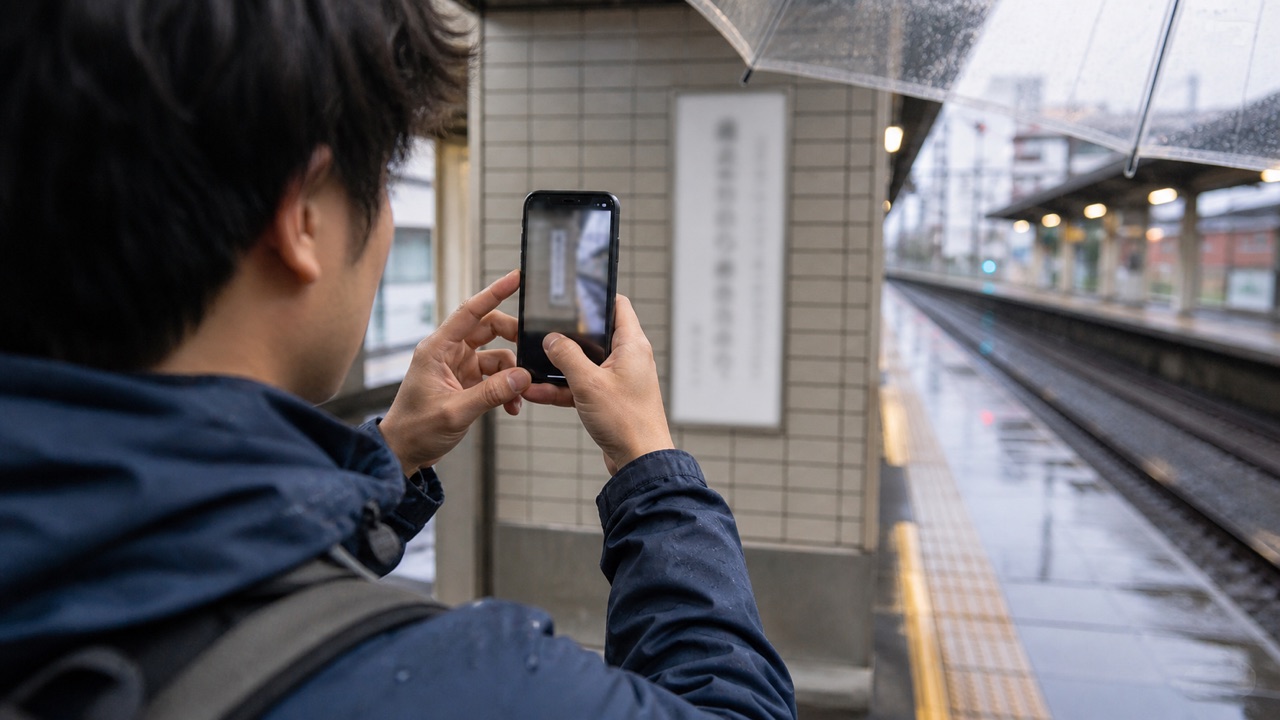
Use the camera to read the text you can actually see. Keep surrounding words, arrows and numbers so the result can be connected to the right door, item or instruction.
Translate Us lists photo/camera translation and an AI dictionary. A dictionary lookup can help with an unfamiliar word, but camera reading and pronunciation still need checking when print is unclear.

Japanese → English · Illustrative workflow
From a menu phrase to a useful question
Keep the original words visible so you can compare the translation with the menu.
-
Read the menu
Japanese input
そば
-
Check the translation
English translation
Soba noodles
-
Ask the next question
Knowing the dish name helps you order. Ask restaurant staff about ingredients or allergies before choosing.
Three short signs to recognize
These are editorial language examples, not outputs captured from Translate Us. Their action depends on the place and any surrounding instruction.
- 入口 (iriguchi): entrance.
- 出口 (deguchi): exit.
- 禁煙 (kin’en): no smoking.
Example
Illustrative input: ‘出口’ → ‘Exit’. Useful action: follow the arrow attached to that sign, rather than assuming every nearby doorway is an exit. The characters and reading shown are editorial examples.
Capture a word, not a loose character
Hold the phone steady and keep the complete line. A character's meaning alone may differ from a compound word, and a cropped ending may change a rule.
For reflective glass or a vertical sign, change the angle or retake the full column. Do not fill in blurred or hidden characters from what you expect the sign to say.
Compare the original before acting
Check numbers, arrows, floor labels and whether the translation includes a prohibition. If the result is surprising, retake the image or ask a member of staff to read the original.
Place names and people's names can have readings that are not obvious from individual characters. Use the transport operator's spelling or ask a person for the name; do not rely on a guessed pronunciation.
Prepare a short follow-up question
Translate ‘Is this the entrance?’ or ‘Could you show me where to go?’ as a separate sentence. Keep the sign photo available when you show the question to staff.
Install Translate Us to try a clear sign before departure. For emergency, access or transport instructions, use staff and the responsible operator when the result remains uncertain.
iPhone workflow
Use Translate Us for the moment in front of you
- Open Translate Us on iPhone and choose voice, text, photo, or live camera for the input you have.
- Set the source and target languages, then read or listen to the translation in context.
- Use real-time conversation when two people need to follow the exchange.
- Continue with the translator keyboard for messages or the AI dictionary for a word, meaning, or example.
Phrases to translate
Short messages to prepare
Choose your source and destination languages in Translate Us, then translate one message at a time. Replace bracketed details before using a phrase.
Is this the entrance?Is this the exit?Could you show me where to go?Could you read this word for me, please?
Quick check
Before you translate
- Choose Japanese as the source.
- Include the complete word or line.
- Keep arrows and numbers.
- Retake unreadable characters.
- Ask staff about names or uncertain instructions.
FAQ
Frequently asked questions
Can I translate one kanji at a time?
A dictionary can help with a character, but read the complete word and surrounding instruction before deciding what it means.
How can I check a camera result?
Compare the original line, numbers and arrows, retake a clear photo and ask staff if the action remains uncertain.
Will a dictionary always give a name's pronunciation?
Do not assume so. Confirm a person's or place's name using the responsible source or speaker.
Sources
Useful links
Take it with you
Try Translate Us on iPhone
Translate voice, text, photos, and live camera input across 200+ languages. Use real-time conversation, the translator keyboard, or AI dictionary when the moment changes.
Explore Translate Us