Translate Us Translation on iPhone
Translated Speech Too Quiet on iPhone? Check Volume and Output
Short answer: If translated speech is already playing but sounds too quiet, adjust the media volume during playback and check where the sound is being sent. A phone can appear silent while audio is directed to connected earbuds or another output.
Check media volume and the selected audio destination when translated speech is too quiet on iPhone, with a complete diagnostic example and fallback phrase.

Published by Clara Publisher
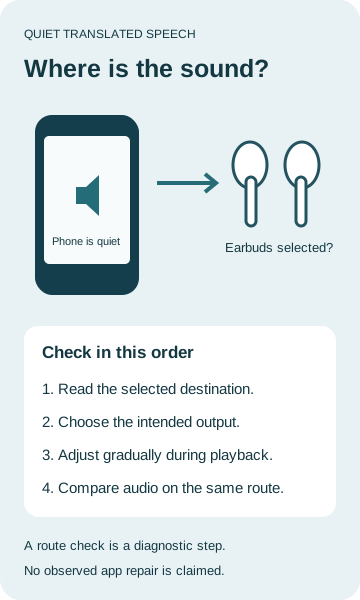
If translated speech is already playing but sounds too quiet, adjust the media volume during playback and check where the sound is being sent. A phone can appear silent while audio is directed to connected earbuds or another output.
Compare the same destination with another ordinary audio source before assuming the translator is broken. The steps below separate an output-route issue, a broader audio problem and a translation-specific problem without promising a universal repair.
English → Spanish · Illustrative workflow
Keep a written airport question
Editorial translation, not captured app output or a device test.
-
Original illustrative English message
English input
Is this the bus to the airport?
-
Finished illustrative Spanish message
Spanish translation
¿Este es el autobús al aeropuerto?
-
Check before relying on it
This asks about the bus route; it does not confirm that the bus goes to the airport.
A traveler’s quiet phone can be playing somewhere else
Imagine a US traveler at a bus stop abroad who has a translated airport question on screen. The English input is Is this the bus to the airport? The complete illustrative Spanish wording is ¿Este es el autobús al aeropuerto? Keep the written question available while checking the sound.
In this illustrative diagnostic scenario, the phone seems quiet and the playback destination shows the traveler’s connected earbuds. The next action is to select the intended destination, then adjust volume gradually while audio is playing. The route observation is invented for the example; it is not a recorded Translate Us test.
Example
- Complete English input
- Is this the bus to the airport?
- Complete illustrative Spanish
- ¿Este es el autobús al aeropuerto?
- Starting observation
- Speech is playing; little sound is heard at the phone. The destination list shows connected earbuds.
- Completed diagnostic action
- Choose the intended output in the playback destination list, adjust gradually during playback, then compare another audio source on that same output.
- What the observation supports
- The selected route is a plausible explanation for not hearing the phone speaker.
- What it does not prove
- That the app failed, that the volume was repaired, or that all audio will use the new route.
Adjust the volume that applies to playback
Apple distinguishes media playback from the ringer and alerts. Use the volume buttons while the speech is actually playing so that you are adjusting the active audio. A button press after a short phrase has ended may address a different volume context.
Control Center also has a volume slider. Raise it gradually, especially when headphones may be connected. Do not jump straight to maximum volume to diagnose quiet sound. The purpose is to establish whether the active output responds, not to produce the loudest possible playback.
- Start from the audio you can already play. If no speech is produced at all, use the separate no-playback branch below.
- While the speech is playing, press the volume-up button gradually and listen at the intended output.
- Open Control Center: swipe down from the top-right corner on a Face ID iPhone; swipe up from the bottom edge on a Home-button iPhone.
- Use the volume slider for the active audio, and check the playback destination before increasing further.
- Compare a familiar audio clip on the same destination at a reasonable level. Record whether both sources are quiet or only the translated speech.
Check the destination shown by iPhone
During playback, open the audio controls in Control Center or on the Lock Screen. Tap the playback-destination control, commonly shown as an AirPlay symbol with a triangle and radiating arcs, and read the listed destination. Select the output you intend to hear, such as iPhone or your connected earbuds.
If the audio tile is compact, touch and hold it to expand its controls. Confirm the selected destination after changing it, then listen there. Do not rely only on a Bluetooth-connected status: a connection and the current playback selection answer different questions.
For the example, the important comparison is earbuds selected versus the intended phone output. If iPhone is not offered or the route does not change as expected, record that exact state. This guide does not establish a special Translate Us routing override.
Use one controlled comparison
Keep the destination the same for both sources. A translation heard through earbuds and a music clip heard through the phone speaker are not a useful volume comparison. Likewise, do not change several settings at once and then guess which one mattered.
If both sources are quiet on the same output, the problem is broader than this one translation. Check that output’s normal operation and use the device or accessory support guidance for the observed problem. If other audio sounds normal but translated speech remains quiet, record the app version, iOS version, destination and a non-sensitive example for app support.
A normal comparison clip does not prove what caused the translation difference. It narrows the report. Avoid claiming that a permission toggle, reinstall or reset will solve it without evidence.
Example
- Comparison A
- Translation and a familiar clip are both quiet through the same earbuds.
- Useful conclusion A
- Investigate that output or broader audio behavior, not just the translated phrase.
- Comparison B
- The familiar clip is normal; only translated speech is quiet on the same output.
- Useful conclusion B
- Record the translation-specific observation and versions for app support; cause remains unconfirmed.
If there is no playback, stop treating it as low volume
This workflow starts with speech that is already playing. If there is no playback at all, first distinguish a missing translation, a failed speech request and a silent active output. Turning up volume cannot establish that a speech result was generated.
Do not enable microphone access solely to make existing speech louder. Recording input and playing output are different tasks. Keep the written translation available and describe the exact failure rather than reporting every sound issue as a microphone problem.
At the bus stop, the full written Spanish question above is a usable fallback. Show it to the person you are asking; do not pretend an inaudible response has been understood. If the reply is unclear, ask for it in writing or seek clarification.
Keep text beside the next spoken exchange
Translate Us lists voice and text translation for iPhone. For another exchange, a written translation provides something to compare or show when sound is hard to hear. Check the supported language and task you need on its own listing.
The audio checks here use documented iPhone controls. They do not claim that installing Translate Us repairs speakers, changes a system restriction or guarantees a particular playback level.
Reading record
Keep the complete worked record
A complete illustrative message you can use without installing an app.
Is this the bus to the airport?
¿Este es el autobús al aeropuerto?
Check: This asks about the bus route; it does not confirm that the bus goes to the airport.
Quick check
Before you translate
- Keep the starting information.
- Follow the matching branch.
- Compare the complete result.
- Leave unresolved details explicit.
FAQ
Frequently asked questions
Why do the volume buttons seem to change the ringer instead?
Adjust while the audio is actively playing. Apple distinguishes active media volume from ringer and alert volume; a short phrase may have finished before you press a button.
Why is the phone quiet when earbuds are connected?
The current playback route may be the earbuds. Open the playback destination list and check the selected output, then listen at that destination.
Should I grant microphone access to make speech louder?
No volume fix is established by that permission. Microphone access concerns recording input; existing speech playback is an output task.
What if other audio is normal but translation remains quiet?
Keep the same destination for comparison. Record the app and iOS versions, output and a non-sensitive phrase for support. The comparison narrows the problem but does not prove its cause.
What if no translated speech starts at all?
That is a different starting condition from quiet playback. Keep the written translation and identify whether a translation result, speech request or active output is missing.
Sources
Useful links
Take it with you
Keep a written translation beside the next conversation
Translate Us offers voice and text translation for iPhone. Explore those options for your next exchange, and keep the written meaning available when sound is difficult to hear. View Translate Us on the App Store.
Explore Translate Us