Translate Us iPhone Guides
How to translate text from images on iPhone
Short answer: Use an iPhone camera for live menu and sign text, or use a photo for a saved image. Better framing, lighting, language selection, and detail checks improve the result.
Translate menus, signs, labels, screenshots, and other image text on iPhone with camera or photo workflows, plus clarity and verification tips.

Published by Clara Publisher
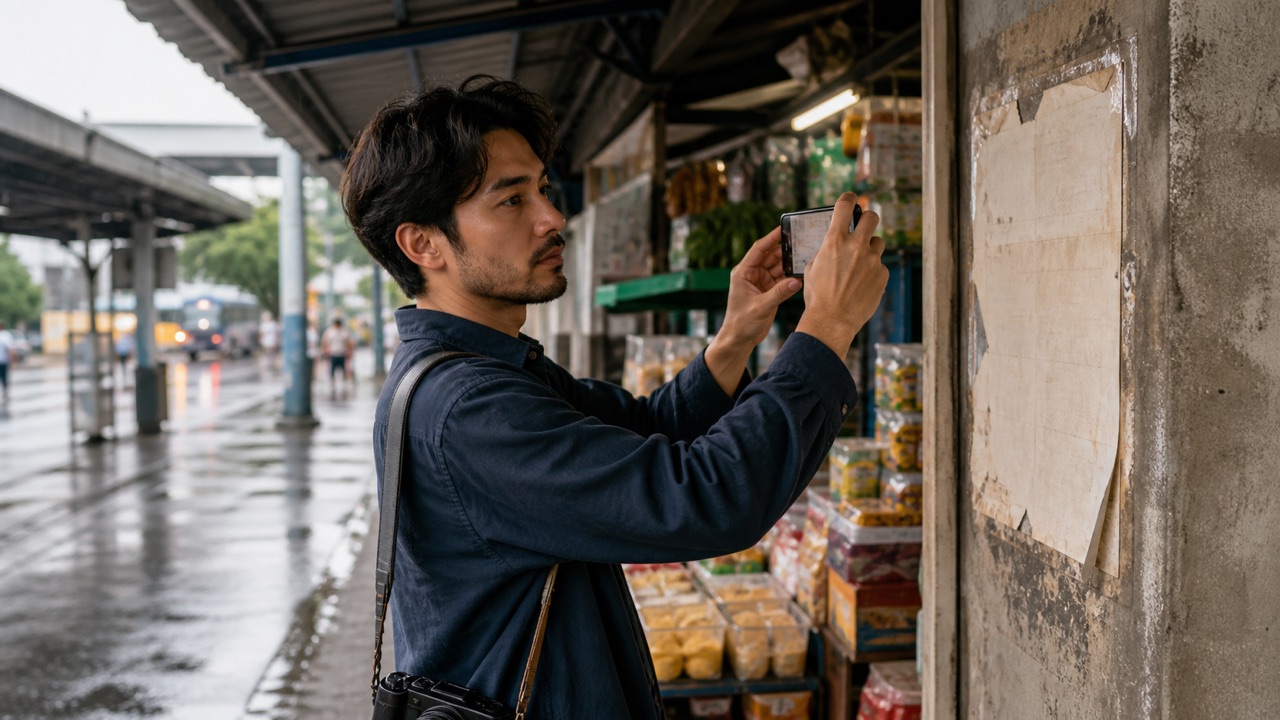
To translate text from an image on iPhone, use a camera workflow for words in front of you or a photo workflow for an image already saved on the phone. Translate Us lists both photo and live camera translation, so you can read menus, signs, labels, and other visible text without typing it first.
Image translation works best when the words are readable. Straighten the phone, reduce glare, move closer, and check the source and target languages. If the result contains a name, number, price, or instruction, compare it with the original before acting.
Spanish → English · Illustrative workflow
A message you can read before sending
Translate the whole sentence first. Use the surrounding conversation to check the meaning.
-
Bring the original message
Spanish input
¿Te viene bien mañana a las dos?
-
Read the natural English wording
English translation
Does tomorrow at two work for you?
-
Confirm the detail, then reply
The original does not say a.m. or p.m. Confirm the time before copying the wording into your conversation.
Translate a menu or sign with live camera
Live camera translation is useful when you are standing in front of a sign, menu, label, or notice. Keep the phone steady and frame the text so the app can read a meaningful block rather than a few isolated characters.
Translate Us lists live camera translation for iPhone. Apple’s own iPhone guide also describes camera translation for nearby text such as menus and street signs. The exact interface can vary, so follow the current controls shown by the app.
- Open Translate Us and choose camera translation.
- Select the language you want to read.
- Hold the iPhone parallel to the text and fill the frame.
- If the live text moves or is hard to inspect, take a clear still photo and use photo translation.
- Read the result and compare critical details with the original text.
Translate an existing photo or screenshot
Use photo mode when the image is already in Photos or when a live view is moving too much. A saved photo gives you time to crop, retake, or inspect one section at a time. For a long page, translate smaller sections rather than expecting one frame to preserve every line.
A screenshot is still an image workflow. Open the saved image in the photo path; do not treat it as editable text unless the iPhone or app can select the words.
- Open Translate Us and choose photo translation.
- Select a clear image from the photo library.
- Crop or retake the image if the text is small, angled, or crowded.
- Choose the source and target languages.
- Review the translation against the visible source before sharing it.
Example
- Illustrative source
- A notice includes a price of €12 and a closing time of 18:00.
- Capture
- Frame the heading and the relevant line together, so each number stays beside what it describes.
- Check
- Compare the currency, digits, and closing time with the photo. Do not infer a price or time from a line that was missed.
- Useful action
- Keep the source photo available while asking staff a short follow-up.
- Basis
- Example workflow, not a captured app translation.
Improve image translation quality
Image recognition needs readable characters. Better light, a straight angle, larger text, and less background help the app identify the source before translation. Google’s image-translation guidance also warns that small, unclear, or stylized text may produce an incorrect result.
Do not silently correct a strange result when the original is available. Zoom in, capture the line again, or use text mode after selecting the words.
- Avoid glare and shadows across the words.
- Hold the camera parallel to a flat page or sign.
- Use a closer crop for small type.
- Keep one language block in the frame when possible.
- Check proper nouns, numbers, prices, and warnings manually.
Camera translation or iPhone text selection?
Use a dedicated camera or photo translator when the words are visible but not easy to select. Use iPhone text selection when the source is already selectable and you want to edit, copy, or replace the result. Both can be useful; choose the path that keeps the source clearest.
Translate Us adds a broader product workflow when the next step is voice, conversation, keyboard, or dictionary use. Start with the image, then switch modes if you need to ask a question or send a reply.
For a first iPhone install, choose one clear notice or menu section that you can check, then try Translate Us photo translation. Avoid starting with a dense page or a dish whose ingredients matter for an allergy; a translation does not establish ingredient safety.
iPhone workflow
Use Translate Us for the moment in front of you
- Open Translate Us on iPhone and choose voice, text, photo, or live camera for the input you have.
- Set the source and target languages, then read or listen to the translation in context.
- Use real-time conversation when two people need to follow the exchange.
- Continue with the translator keyboard for messages or the AI dictionary for a word, meaning, or example.
Sample phrases
Follow-up questions after reading an image
These are illustrative source phrases to translate separately after reading a menu or notice. They do not ask the app to infer hidden ingredients or audit an image with a chatbot instruction.
Could you explain this item?Is this price per person?What time does the ticket office close?Could you show me the entrance on the map?
Quick check
Before you translate
- Choose camera for live text or photo for a saved image.
- Select the correct language pair.
- Improve light, angle, distance, and crop before retrying.
- Translate long images in readable sections.
- Verify names, numbers, prices, measurements, and warnings.
FAQ
Frequently asked questions
Can I translate a menu with an iPhone camera?
Yes. A camera translation workflow can read visible menu text. Frame one readable section at a time and check dish names, ingredients, and prices against the original.
Can Translate Us translate a screenshot?
Translate Us lists photo translation. A screenshot can be handled as a saved image if it is available in the iPhone photo library and the text is readable.
Why is text from my image translated incorrectly?
The image may be too small, blurry, angled, stylized, or poorly lit, or the source language may be wrong. Retake the image, crop it, confirm languages, and verify the original.
Sources
Useful links
Take it with you
Try Translate Us on iPhone
Translate voice, text, photos, and live camera input across 200+ languages. Use real-time conversation, the translator keyboard, or AI dictionary when the moment changes.
Explore Translate Us