Translate Us iPhone Guides
How to translate a PDF on iPhone using screenshots or photos
Short answer: Translate a PDF on iPhone by capturing readable page screenshots or photos and sending those images through a photo translation workflow. Translate Us is not presented as a direct PDF importer.
Translate a PDF on iPhone with a screenshot or photo workflow. This guide does not claim direct PDF import and explains page-by-page checks.

Published by Clara Publisher
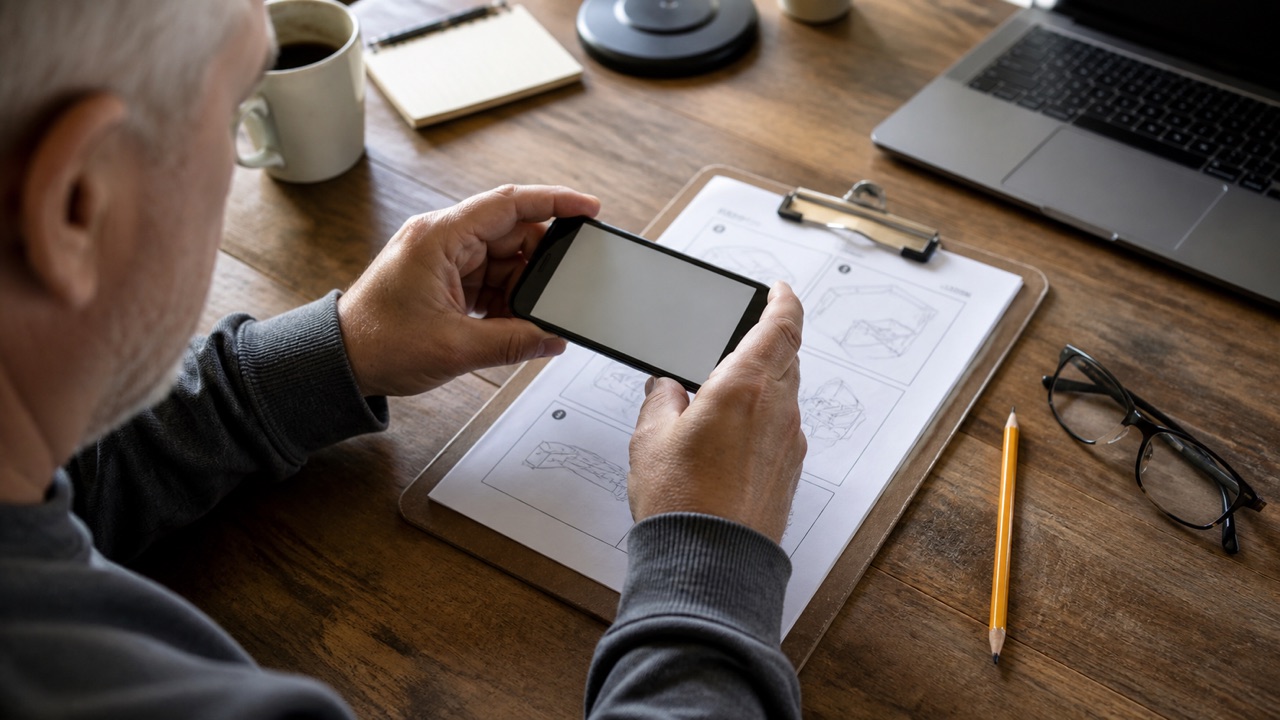
To translate a PDF on iPhone with Translate Us, use a screenshot or photo workflow: open a page, capture the text as an image, open that image in photo translation, and review the result page by page. Translate Us is not presented here as a direct PDF import tool.
This method works best for short passages and readable pages. It can lose layout, tables, footnotes, and document structure, so long or high-stakes PDFs need a more controlled document workflow and qualified review.
Japanese → English · Illustrative workflow
From a menu phrase to a useful question
Keep the original words visible so you can compare the translation with the menu.
-
Read the menu
Japanese input
そば
-
Check the translation
English translation
Soba noodles
-
Ask the next question
Knowing the dish name helps you order. Ask restaurant staff about ingredients or allergies before choosing.
Screenshot a PDF page and translate it
A screenshot turns the visible PDF page into an image that a photo translation workflow can read. Zoom the document before capturing so the text is large enough, and capture only the relevant section when a full page would make the words too small.
Use one page or section at a time. That keeps the source readable and makes it easier to compare the translation with the original.
- Open the PDF on your iPhone and navigate to the page you need.
- Zoom until the relevant text is readable, then take a screenshot and save the image to Photos if prompted.
- Open Translate Us and choose photo translation.
- Select the screenshot from the photo library and set the language pair.
- Compare the translation with the source before moving to the next section.
Example
- Illustrative page
- A travel notice says “Departures after 18:00 use entrance B.”
- Capture
- Include the heading, the full sentence, and the page number in a readable screenshot.
- Check
- Keep “after,” the time 18:00, and the letter B together. If one is missing, recapture that line instead of applying the instruction to every departure.
- Basis
- Constructed reading example, not a recorded PDF translation.
Photograph a PDF displayed on another screen
If the PDF is on an iPad, laptop, or printed page, use the iPhone camera or take a photo and then use photo translation. Avoid glare, reflections, and extreme angles. A screenshot is usually cleaner when the file is already on the iPhone, but a camera can bridge devices.
Do not photograph an entire long document and expect every line to survive. Capture the section that answers your current question, then continue in order.
- Keep the page flat and the phone parallel to it.
- Use enough light without a reflection across the words.
- Crop away unrelated page content.
- Capture tables in smaller pieces and check column order.
- Keep page numbers so you can find the source again.
Example
For a two-page travel instruction, capture the heading and each numbered step separately. Preserve the page number in your notes so the translated phrase can be checked later.
Use selectable text when the PDF allows it
If the PDF lets you select and copy a passage, start there. Text translation avoids another image-recognition step. Paste the smallest complete passage into Translate Us and keep the PDF page available for reference. You do not need a screenshot merely because the source file is a PDF.
A scanned PDF may not offer selectable text. In that case, use a screenshot or photo and treat the result as image recognition, with the same clarity limits as a sign or menu.
Know what this workflow cannot preserve
A screenshot or photo carries pixels, not the original document structure. Columns can be read out of order. Footnotes may be separated from the sentence they explain. A chart, signature, form field, or legal clause may need more than a quick translation.
Use the workflow for orientation and short passages. For contracts, medical records, immigration forms, safety material, or a long professional document, use a document-capable translation process and human review.
For a first iPhone install, choose one short, non-sensitive PDF passage you can verify. Install Translate Us, use selectable text if available, or save one readable screenshot to Photos. Check that a heading, condition and number all survived before translating more pages.
iPhone workflow
Use Translate Us for the moment in front of you
- Open Translate Us on iPhone and choose voice, text, photo, or live camera for the input you have.
- Set the source and target languages, then read or listen to the translation in context.
- Use real-time conversation when two people need to follow the exchange.
- Continue with the translator keyboard for messages or the AI dictionary for a word, meaning, or example.
Sample phrases
Source sentences with document details to check
These illustrative lines stand in for short PDF passages. Translate them normally and check conditions, negation, letters, and numbers. They are not prompts for direct PDF import, summarization, or document comparison.
Departures after 18:00 use entrance B.Please keep this ticket until the end of the journey.The return journey is not included.Contact reception before changing the reservation.
Quick check
Before you translate
- Open the PDF and choose a page or section.
- Use a screenshot or photo; do not assume direct PDF import.
- Make the text large, straight, and well lit.
- Keep source images and page numbers for comparison.
- Use human review for official or high-stakes documents.
FAQ
Frequently asked questions
Can Translate Us import a PDF directly?
This guide does not claim direct PDF import. Use a screenshot, photo, or selectable-text workflow, and verify the current product listing before relying on any document feature.
What is the easiest way to translate a PDF on iPhone?
For a short passage, zoom to a readable section, take a screenshot, and use photo translation. If the PDF text is selectable, copy the passage into text translation instead.
Can an image workflow preserve PDF formatting?
Not reliably. Screenshots and photos capture visual text but may lose columns, tables, footnotes, and document structure. Use a document workflow and human review when layout or legal meaning matters.
Sources
Useful links
Take it with you
Try Translate Us on iPhone
Translate voice, text, photos, and live camera input across 200+ languages. Use real-time conversation, the translator keyboard, or AI dictionary when the moment changes.
Explore Translate Us