Translate Us iPhone Guides
iPhone Translate not working? Find the failed step
Short answer: If translation is not working on your iPhone, first separate an app that will not open from a failed text request, a voice-input problem, or silent playback. Close and reopen an unresponsive app, then use one short typed phrase to find the next useful check.
Use a short typed request and a clear failure record to separate app recovery from input and playback problems.

Published by Clara Publisher
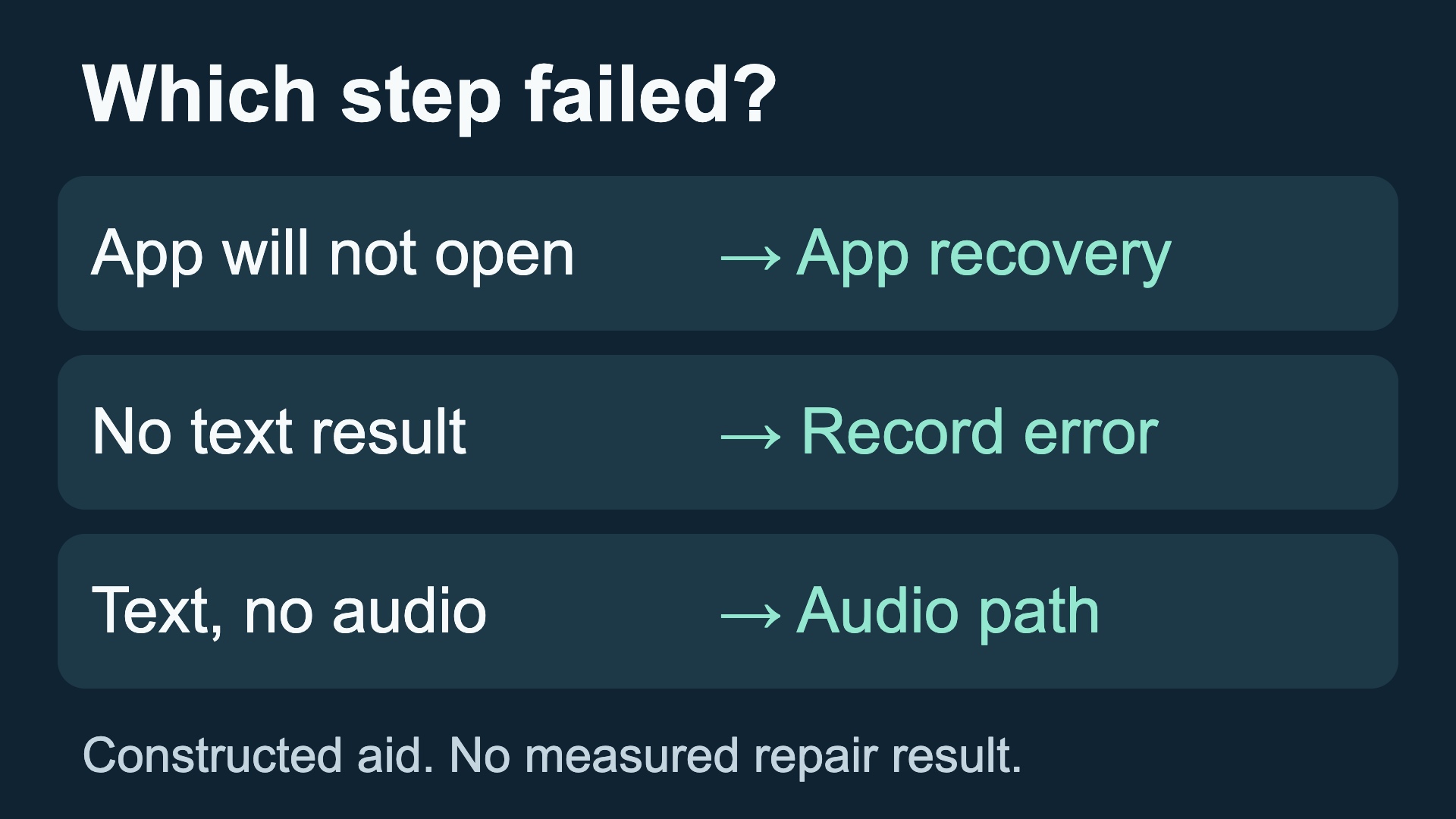
If translation is not working on your iPhone, first separate an app that will not open from a failed text request, a voice-input problem, or silent playback. Close and reopen an unresponsive app, then use one short typed phrase to find the next useful check.
This guide provides an original diagnostic workflow, checked against official support documentation on 20 October 2026. It presents no hands-on translation test or measured repair result. AIPoweredApps makes Translate Us.
English → English · Illustrative workflow
Record one failed step before changing the task
Hypothetical diagnostic record, not captured translation, app test or measured repair result.
-
Keep one short source phrase
English input
Please confirm Friday at 6 PM.
-
Constructed observation
English translation
A translated result appears, but playback is silent.
-
Choose the next check
Check volume and audio destination. Keep visible text, speech input and playback findings separate.
Name the app and the failed step
Name Apple Translate, Translate Us, the other app you are using, or the translation feature inside Messages, a call, Safari, or AirPods. A problem in one of these places does not establish that the others have failed. Record the iPhone model, iOS version, app version, language direction, and exact message on screen.
Then choose one visible symptom. Does the app close before you can enter anything? Does a typed request stay blank? Does text appear but speech input fail? Does a translation appear with no sound? These observations lead to different checks. Repeating a long voice request hides that distinction.
The workflow below is a diagnostic aid, not a tested repair for a current iOS bug. Apple community reports from 2021 and 2023 describe different symptoms under similar headings. Their age matters: they show why the question needs clarification, not that those bugs remain present today.
If the app will not open, start with app recovery
Apple's support guidance, dated 24 March 2026, recommends closing and reopening an unresponsive app, restarting the device, and checking for app and iOS updates. Retry the same small task after each step so you can record what changed.
If the app opens and accepts text, continue below. If it still closes, keep your failure record for support. Apple warns that deletion can remove stored app data. Preserve needed content before considering deletion and redownload.
Run one short typed check
Use a working connection for the initial check unless you are specifically testing a documented offline mode. Choose a source and target language that the installed app offers. Type a short sentence whose source language you know, such as: Please confirm Friday at 6 PM.
If a website loads in Safari but the translator still reports an error, record both facts. That checks some internet access; it does not establish that the translator's service is reachable. Do not infer a current outage or damaged phone from one failed request.
- Keep the sentence and language direction fixed. Submit it using the app's normal text-translation action.
- Record what appears: translated text, unchanged input, a blank result, or an exact error message. Do not summarize every symptom as not working.
- If a result appears, check its date and time details with a reader of the target language. Availability alone does not establish accuracy.
- Only then try the same message through the input mode that originally failed. Record whether the recognized words match what you said or photographed.
Use the result to choose the next check
These are boundaries for interpreting your observation. A successful text result does not prove that voice, camera, offline use, or an integrated Apple feature works. A failed voice attempt does not prove that every translation mode is unavailable.
- App closes or freezes before input. The translation request has not yet been tested. Follow app recovery; record where the app stops.
- Typed request returns no result. Text translation is unavailable in that attempt. The cause is still unknown. Save the exact error, offered language pair, connection state, and app version for support.
- Typed translation appears; speech is missing or wrong. A text request completed. Voice input still needs a separate check. Try a short turn in a quiet place and compare any recognized words with your source.
- Translated text appears; playback is silent. A visible result exists. Audio playback has not been established. Check the volume and where iPhone audio is being played before repeating translation.
- Photo text is missed or changed. The captured source may differ from the words you need. Retake a readable crop or type the same short line; use the image guide for framing.
- Only a downloaded-language or integrated feature fails. The failing feature has narrower conditions than a general app test. Check that feature's current official requirements; do not transfer a text result to offline or native integration support.
A worked diagnostic record
Consider this constructed example: a reader can open the app and sees a translation for a typed phrase, but hears nothing after requesting playback. The next useful record is about audio output. Reinstalling the app or changing the language pair would add new variables before the silent playback is described.
This example contains no captured app output or measured repair result. Replace it with your own observations. Keep any screenshot limited to the error and controls needed to explain the problem; remove private messages before sending it to support.
Example
- Source used
- Please confirm Friday at 6 PM.
- Visible observation
- A translation appears; playback is silent.
- What this establishes
- A typed request returned a visible result in this hypothetical attempt.
- What remains unknown
- Meaning accuracy, audio destination, playback behavior, and voice-input availability.
- Next record to make
- Volume level, connected audio device, and whether other iPhone audio is audible.
Keep specialized fixes with the right task
For a speech-recognition problem, check the recognized source words before judging their translation. For unreadable photo text, work on the capture. For an offline requirement, verify the exact language and mode in official documentation and test without a connection. Those are separate tasks with their own guides below.
If the problem is Live Translation within an Apple feature, use the requirements for that specific feature. Testing a standalone translator is a separate task. It does not verify or repair translation inside an Apple call, Messages, or AirPods.
When a separate text translator is useful
If you need a short ordinary message translated while investigating the original app, you can test a separate compatible translator. The Translate Us US App Store listing, checked on 20 October 2026, lists text, voice, photo, camera, and keyboard translation. It shows version 2.1.0 and an iPhone installation requirement of iOS 15 or later.
For a first task, inspect the current listing, confirm your iPhone and desired language pair are supported, and try the same short typed sentence. Keep the source visible and review the meaning. This guide has not executed a Translate Us output test, verified offline behavior, or established identical language support across modes. Installing it is not a repair for Apple Translate.
Sources and review method
Prepared by AIPoweredApps, the maker of Translate Us, and prepared for Clara's publisher disclosure. Reviewed on 20 October 2026 against official documentation and the US App Store listing. The diagnostic tables and sample record are original editorial aids. No hands-on translation or repair test is presented.
Diagnostic notes
Keep one source and a precise symptom
The first sentence is an illustrative source for the typed check. The remaining lines show how to describe a failure to support. They are not captured app results.
Please confirm Friday at 6 PM.I can read the translated text, but playback is silent.The app closes before I can enter a phrase.The typed request returns this exact error:
Quick check
Before you translate
- Name the app or integrated Apple feature.
- Record the iPhone, iOS and app versions and language direction.
- Use one short source phrase and keep it fixed.
- Separate visible text, speech recognition, photo capture and playback.
- Preserve needed data before considering deletion.
- Send support a concise record with private content removed.
FAQ
Frequently asked questions
Why does text work while voice translation fails?
A visible text result establishes that one text request completed. Voice adds an input path that may fail separately. Compare any recognized words with what you said, then record the exact voice symptom. Do not infer a microphone fault or a service outage without further evidence.
Should I delete and reinstall the app immediately?
First record the symptom and try the reversible app-recovery steps Apple documents. Apple warns that deleting an app can remove stored data. Preserve material you need and use the relevant support channel if the failure continues.
Does a working internet connection prove the translator is available?
No. Loading a web page checks some connectivity. It does not establish that a particular translation service or request is working. Keep the connection state and exact translator error together in your diagnostic record.
Why does downloaded-language translation need a separate check?
Availability can depend on the exact app, language, direction, and input mode. A working online text result does not establish offline voice, photo, or conversation support. Use current official documentation and test the mode you actually need.
Will Translate Us fix Apple Translate or AirPods Live Translation?
No repair is established here. Translate Us is a separate app with listed text and other translation features. A successful task in it would not verify or restore an integrated Apple translation feature.
What should I send to support?
Include the app name and version, iPhone model, iOS version, language direction, a short nonprivate source phrase, exact error, and the step that failed. State whether typed text, voice input, and playback were tested separately. Remove private content from screenshots.
Sources
Useful links
- Apple Support: an iPhone or iPad app stops responding, published 24 March 2026
- Translate Us US App Store listing, checked 20 October 2026
- Apple Community: stopped after update, 2 November 2023
- Apple Community: typed and voice attempts fail, 12 April 2021
- Apple Community: downloaded-language failure, 2 March 2021
Take it with you
Try one short text task on iPhone
If you need a separate translator for an ordinary message, inspect Translate Us compatibility and language support, then try a short typed sentence. Keep the original for comparison.
Explore Translate Us