Translate Us Translation Trends
The future of voice, image, and text multimodal translation
Short answer: Multimodal translation lets you change between typed text, speech, and images as a task changes. Useful future improvements would make those handoffs clearer while keeping the original available for checking.
See how voice, image, and text translation fit one iPhone workflow, what multimodal systems may improve, and where human checking still matters.

Published by Clara Publisher
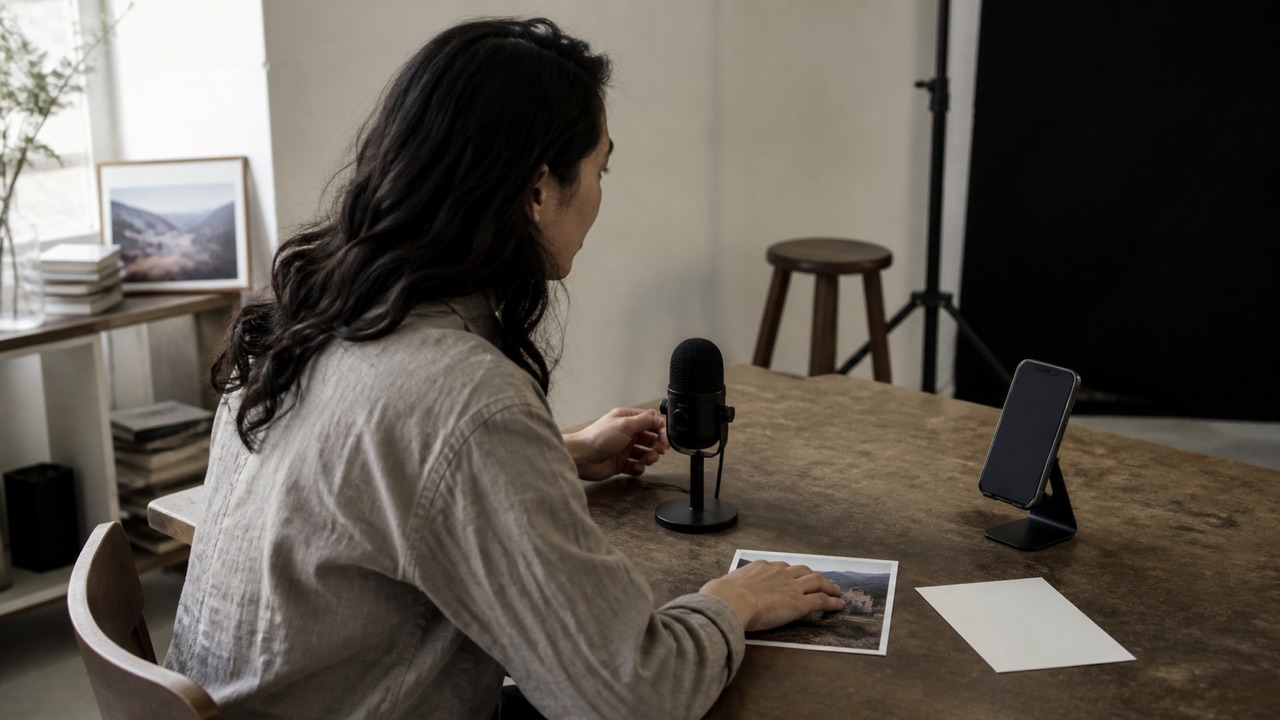
The future of translation is likely to feel less like choosing a single translator mode and more like moving between text, voice, and images in one task. You may point at a sign, ask a spoken follow-up, then type a precise address without changing the overall workflow.
That direction is useful because real communication is mixed. It is also difficult: each mode has its own recognition errors, and combining them does not remove the need to check names, numbers, tone, and high-stakes meaning.
Spanish → English · Illustrative workflow
One question, ready for the next exchange
Choose Spanish and English for this example. Keep each turn short enough to check.
-
Start with a short question
Spanish input
¿Dónde está la estación?
-
Read the translated meaning
English translation
Where is the station?
-
Confirm the answer
Take turns speaking. If the reply names a street or a time, confirm that detail before you move on.
Why voice, images, and text belong together
A traveler does not encounter language as clean typed sentences. A menu is visual. A question is spoken. A hotel address may need to be typed exactly. Separating those jobs into unrelated tools creates extra copying and more chances to lose context.
A multimodal workflow keeps the task continuous while changing the input. The user can choose the source that is easiest in the moment rather than converting every sign into typed text first.
- Voice handles movement and face-to-face speech.
- Images handle printed or displayed words that cannot be selected.
- Text handles precision, editing, and message composition.
- Conversation views connect two speakers across a language pair.
- Dictionaries add meaning and usage when a full translation is too broad.
What a multimodal workflow looks like on iPhone
Translate Us lists text, voice, photo, live camera, real-time conversation, translator keyboard, AI dictionary, and 200+ languages on iPhone. The useful product question is not whether every mode exists in theory; it is whether you can move to the next mode without losing the original context.
Keep a simple handoff rule: visual input for what you see, voice for what you hear, text for what must be exact. If a result is uncertain, move to a more controllable input instead of repeating the same unclear source.
- Frame a sign or menu with camera mode.
- Use the translated phrase as context for a short voice question.
- Type names, dates, or addresses so the source is explicit.
- Use conversation mode when both people need to speak.
- Use the keyboard to compose a written follow-up in another app.
Example
- Original input
- A photographed notice says that reservations close at 18:00.
- Useful action
- Read the notice, then type a separate question: “Can I reserve two tickets before 6 PM?”
- Check
- Compare the written time and ticket count with the original. Carry the details yourself when changing modes.
- Basis
- Illustrative workflow. It does not show an app result or automatic cross-mode memory.
What future systems may improve
The useful goals are specific: retain the spelling of a name when moving from a photo to a typed reply, show which spoken words were recognized, and keep a correction visible for the next turn. These are design goals for translation tools, not a promise that Translate Us currently carries context automatically between its modes.
A tool can offer several input modes without combining their evidence in one translation. Test each handoff yourself. If a name from a photographed sign is needed in a message, copy or type it deliberately rather than assuming the next mode has retained it.
- Visible recognition text so the user can correct what was heard or read.
- Explicit ways to carry a name or correction to the next task.
- Clearer speaker turns during a conversation.
- Controls that make it easy to return to the original source.
- Uncertainty cues that can be checked against the source.
Multimodal does not mean infallible
A combined workflow can still fail at any layer. Noise can change the transcript. Glare can hide text. A language pair can have ambiguous wording. Context can help, but context can also be misread.
Use multimodal translation as an access tool and a fast first pass. Confirm critical information in the original language or with a qualified person. A future-facing interface still needs a clear fallback to text, repetition, or human review.
Try the mixed-input habit now
When your translation source changes, change the input mode instead of forcing one method. Translate Us gives iPhone users a product path across text, voice, photo, camera, conversation, keyboard, and dictionary workflows.
For a first iPhone test, install Translate Us and translate one readable photo, then write a short question about it in text mode. Check each result against its own source. This tests the mixed-input habit without assuming an automatic handoff.
iPhone workflow
Use Translate Us for the moment in front of you
- Open Translate Us on iPhone and choose voice, text, photo, or live camera for the input you have.
- Set the source and target languages, then read or listen to the translation in context.
- Use real-time conversation when two people need to follow the exchange.
- Continue with the translator keyboard for messages or the AI dictionary for a word, meaning, or example.
Sample phrases
Source phrases for a mixed-input outing
These are separate illustrative translation inputs. Move any name, time, or reference from an image into the next source sentence yourself; the examples do not claim shared memory across modes.
Can I reserve two tickets before 6 PM?Is the entrance on the other side of the building?Please send the booking reference in writing.Which platform does the train leave from?
Quick check
Before you translate
- Match input mode to source: voice, image, or text.
- Keep original words visible during a mode handoff.
- Check names, numbers, and dates separately.
- Use text when speech or image quality is uncertain.
- Use qualified human review for high-stakes translation.
FAQ
Frequently asked questions
What is multimodal translation?
It combines more than one input type, such as typed text, spoken language, and images, in a translation workflow. The user can change modes based on how language appears.
Why is multimodal translation useful on iPhone?
An iPhone has a keyboard, microphone, camera, and screen. A multimodal app can use the right input for a message, conversation, menu, sign, or photo instead of requiring everything to be typed.
Will multimodal translation eliminate errors?
No. It can add context, but each input layer can still misread speech, images, or ambiguous wording. Confirm critical details and use human review when needed.
Sources
Useful links
Take it with you
Try Translate Us on iPhone
Translate voice, text, photos, and live camera input across 200+ languages. Use real-time conversation, the translator keyboard, or AI dictionary when the moment changes.
Explore Translate Us