Translate Us Translation on iPhone
Translation Keyboard Not Showing on iPhone? Check Activation and Field Type
Short answer: If an installed translation keyboard is missing from your iPhone’s switcher, first check Settings > General > Keyboard > Keyboards. If it is not enabled, use Add New Keyboard to add it when it is listed. Then check the switcher in an ordinary message field.
Find why an installed translation keyboard is absent from the iPhone switcher. Check activation, ordinary text fields and documented system restrictions.

Published by Clara Publisher
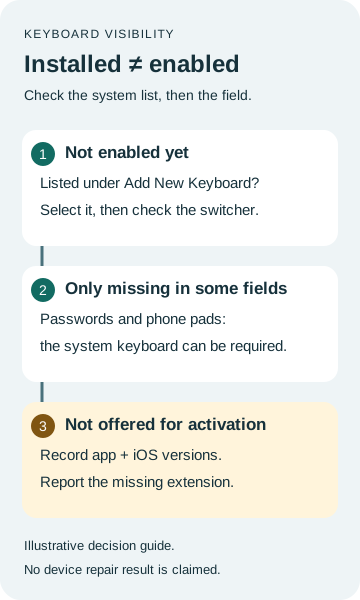
If an installed translation keyboard is missing from your iPhone’s switcher, first check Settings > General > Keyboard > Keyboards. If it is not enabled, use Add New Keyboard to add it when it is listed. Then check the switcher in an ordinary message field.
If it appears in ordinary text but not in a password or phone-pad field, that can be an iOS restriction rather than a missing installation. If iOS does not offer the keyboard for activation, the steps below identify that unresolved case without promising a universal repair.
English → Spanish · Illustrative workflow
Keep the arrival time in the message
Editorial translation for the traveler example, not captured app output or a keyboard repair test.
-
Original illustrative message
English input
We’ll arrive at 6 p.m.
-
Finished illustrative Spanish message
Spanish translation
Llegaremos a las 6 p. m.
-
Check before relying on it
6 p.m. stays 6 p.m. The message does not specify a date or time zone.
An installed app is not the same as an enabled keyboard
Imagine a US traveler preparing a message for a host abroad: “We’ll arrive at 6 p.m.” The translation app is installed, but the iPhone keyboard switcher offers only English and Emoji. The first useful check is the iOS enabled-keyboards list, not the message’s language.
Here is an illustrative diagnosis, not a recorded Translate Us repair. If the installed keyboard appears under Add New Keyboard but is not yet in the enabled list, select it there. Then return to an ordinary message field and check the switcher. If it is absent from the available list too, use the separate unresolved branch below; the activation steps cannot add an extension that iOS does not offer.
For the message itself, We’ll arrive at 6 p.m. can be rendered in Spanish as Llegaremos a las 6 p. m. This complete wording is provided here so you can use the example without installing anything. It is an editorial translation, not a result observed in the keyboard. The message does not specify a date or time zone.
Example
- Starting information
- Installed translation app. Enabled keyboards: English, Emoji. Ordinary message field: translation keyboard absent.
- Completed next action
- Open Settings > General > Keyboard > Keyboards > Add New Keyboard. If the installed keyboard is listed, select it. Return to an ordinary message field and check the keyboard switcher.
- Success check
- The keyboard appears in the enabled list and can be selected in an ordinary text field. This is a check to perform, not a claimed test result.
- Message being prepared
- We’ll arrive at 6 p.m.
- What is not established
- The app’s exact translation controls, a translated result or guaranteed repair.
- Complete message input
- We’ll arrive at 6 p.m.
- Illustrative Spanish message
- Llegaremos a las 6 p. m.
Check the iOS enabled-keyboards list
Apple documents a system activation path for third-party keyboards. Installing the containing app and adding its keyboard are separate steps. The labels below refer to iOS Settings, not to a Translate Us screen.
Look for the keyboard associated with the installed app. Do not select an unrelated keyboard simply because its name includes translation. If the expected keyboard is already in the enabled list, skip adding it again and move to the field check.
- Open Settings, then General, then Keyboard, then Keyboards. Read the list of enabled keyboards.
- If the expected keyboard is missing, open Add New Keyboard and look for the installed app’s keyboard.
- If it is listed, select it and return to the Keyboards list to check that it was added. If it is not offered, stop this branch and use the unresolved-extension guidance below.
- Return to an ordinary editable message field and bring up the onscreen keyboard. Touch and hold the globe (Switch Keyboard) key or Emoji button, then tap the keyboard you want from the list.
- If it works in that field but not in another, compare the field types and the host app before changing permissions or reinstalling anything.
Check an ordinary field before a password field
Use a normal message or note field for the comparison. A password field is a poor test of whether a custom keyboard is enabled: iOS uses its system keyboard for secure text entry. Phone-pad fields also use a system keyboard, and an app can reject custom keyboards.
This distinction changes the next action. If the keyboard is available in an ordinary field but disappears when you enter a password, that fits a documented system restriction. Repeatedly adding it does not remove that restriction. If it is absent in every ordinary field you check, return to its enabled-list status and the unresolved branch.
Keep the test text non-sensitive. You only need to see whether the keyboard can be selected; there is no need to type a password, payment detail or private message to diagnose visibility.
Example
- Observed by the reader
- Keyboard available in a normal note; system keyboard shown in a password field.
- Interpretation
- A secure-field restriction is consistent with Apple’s documentation.
- Next action
- Use the system keyboard for the secure field. Do not treat that field alone as evidence of a broken installation.
Do not use Full Access as a visibility shortcut
Adding a keyboard and granting it Full Access are separate decisions. The activation path above does not establish that Full Access repairs a keyboard missing from the switcher. Do not change that permission just to make this diagnosis.
A keyboard’s network-dependent translation behavior is also separate from whether iOS offers the keyboard. This guide addresses availability in the switcher. It does not diagnose a translation request that fails after the keyboard is already open.
If the keyboard is still missing, identify the exact failure
If the app is installed but its keyboard is absent from Add New Keyboard, you have reached a different problem: iOS is not offering that extension for activation. These instructions do not establish its cause. Record the app version, iOS version and the fact that the keyboard is missing from the available list, then use the app’s support channel for that specific issue.
If it is enabled but unavailable in ordinary text fields, record which apps and field types you checked. State separately whether it ever appears anywhere. That gives support a useful reproducible description instead of “translation does not work.” Avoid sending the content of private messages.
There is no universal repair promised here. Reinstalling, resetting settings or changing access permissions without a diagnosed cause can create extra work and is not part of this documented activation check.
Continue with your next bilingual message
Translate Us lists a translation keyboard and text translation for iPhone. Once keyboard availability is settled, those are relevant options for preparing another message across languages. The next step is to review the app’s listing and the supported task you need.
Installing a translation app is not, by itself, a repair for an iOS keyboard restriction. Keep the setup decision above separate from the wording you want to translate.
Reading record
Keep the complete worked record
An illustrative record you can use without installing an app.
Installed translation app.
Enabled keyboards: English, Emoji.
Ordinary message field: translation keyboard absent.

Open Settings > General > Keyboard > Keyboards > Add New Keyboard.
If the installed keyboard is listed, select it.
Return to an ordinary message field and check the keyboard switcher.

We’ll arrive at 6 p.m.
Llegaremos a las 6 p. m.
Quick check
Before you translate
- Keep the starting information.
- Follow the matching branch.
- Compare the complete result.
- Leave unresolved details explicit.
FAQ
Frequently asked questions
Does installing an app automatically enable its keyboard?
No. Apple documents adding a custom keyboard through the iOS Keyboards settings. Check the enabled list separately from whether the containing app is installed.
Why does my keyboard disappear in a password field?
iOS uses its system keyboard for secure text fields. Test availability in an ordinary message field before concluding that the custom keyboard is missing everywhere.
Should I turn on Full Access to make it appear?
This guide does not establish Full Access as a visibility fix. Adding a keyboard and changing that permission are separate decisions. Check activation and field restrictions first.
What if it is not listed under Add New Keyboard?
The documented activation path cannot add an extension that iOS does not offer. Record the app and iOS versions and report that precise missing-extension state through the app’s support channel.
Will these steps guarantee a Translate Us repair?
No. They provide a documented iOS activation check and distinguish restricted fields from an unresolved extension problem. They are not a claim of a tested Translate Us repair.
Sources
Useful links
Take it with you
Prepare your next bilingual message with Translate Us
Translate Us offers a translation keyboard and text translation for iPhone. Once you have checked keyboard availability, explore those options for your next message on its App Store page. Installation does not override iOS field restrictions.
Explore Translate Us